DRAPI + Keycloak OIDC Login — Hands-on Notes
A full local reproduction of OIDC login for the HCL Domino REST API (DRAPI), with every gotcha recorded along the way. Using Keycloak as the IdP, the whole flow is run end-to-end in a local environment — a complete reference for OIDC config, identity mapping, certificate trust and certstore.
Document index
| Document | Content |
|---|---|
This file README.md |
Step-by-step (Stages 1–6) + gotcha table + result |
環境與架構.md |
Test environment & network architecture diagram |
HTTPS-主機名設定.md |
Switching DRAPI to HTTPS + hostname (PEM cert, Keycloak redirect/CORS updates) |
憑證信任重現與排查.md |
Key finding: reproducing Error fetching token, proving DRAPI outbound trust = JVM cacerts |
certstore/README.md |
certstore.nsf hands-on: works for DRAPI/Domino HTTP inbound, not for outbound; HTTP needs FQDN |
📐 See Environment & Architecture for the test setup and network diagram.
Background: DRAPI's three OIDC modes
| Mode | When to use | Notes |
|---|---|---|
jwt |
External provider where you only have the public key | |
oidc |
Standard OIDC provider (Keycloak, Entra ID…) | Needs clientId/clientSecret. Used in this project |
oidc-idpcat |
Domino 14+ idpcat.nsf |
Requires Domino 14; not applicable here (12.0.2) |
Takeaway: Domino 12.0.2 can do OIDC via
oidcmode — Domino 14 is not required.
Stage 1: Create a dedicated WSL environment
wsl --version                                   # need >= 2.4.4 for --name
wsl --install -d Ubuntu-24.04 --name Keycloak-OIDC
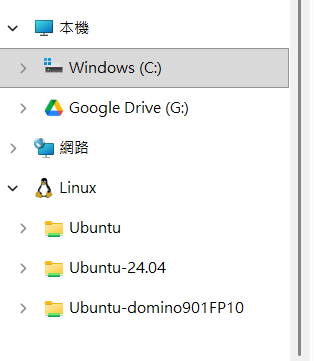
Stage 2: Install & start Keycloak (inside Keycloak-OIDC)
sudo apt update && sudo apt install -y openjdk-21-jdk
cd ~
KC_VERSION=$(curl -s https://api.github.com/repos/keycloak/keycloak/releases/latest | grep -oP '"tag_name": "\K[^"]+')
wget https://github.com/keycloak/keycloak/releases/download/${KC_VERSION}/keycloak-${KC_VERSION}.tar.gz
tar -xzf keycloak-${KC_VERSION}.tar.gz && cd keycloak-${KC_VERSION}
export KC_BOOTSTRAP_ADMIN_USERNAME=admin
export KC_BOOTSTRAP_ADMIN_PASSWORD=admin
bin/kc.sh start-dev
Verify: open http://localhost:8080 in the Windows browser (⚠️ do not use 0.0.0.0:8080 — that's a bind address, not a connect address).
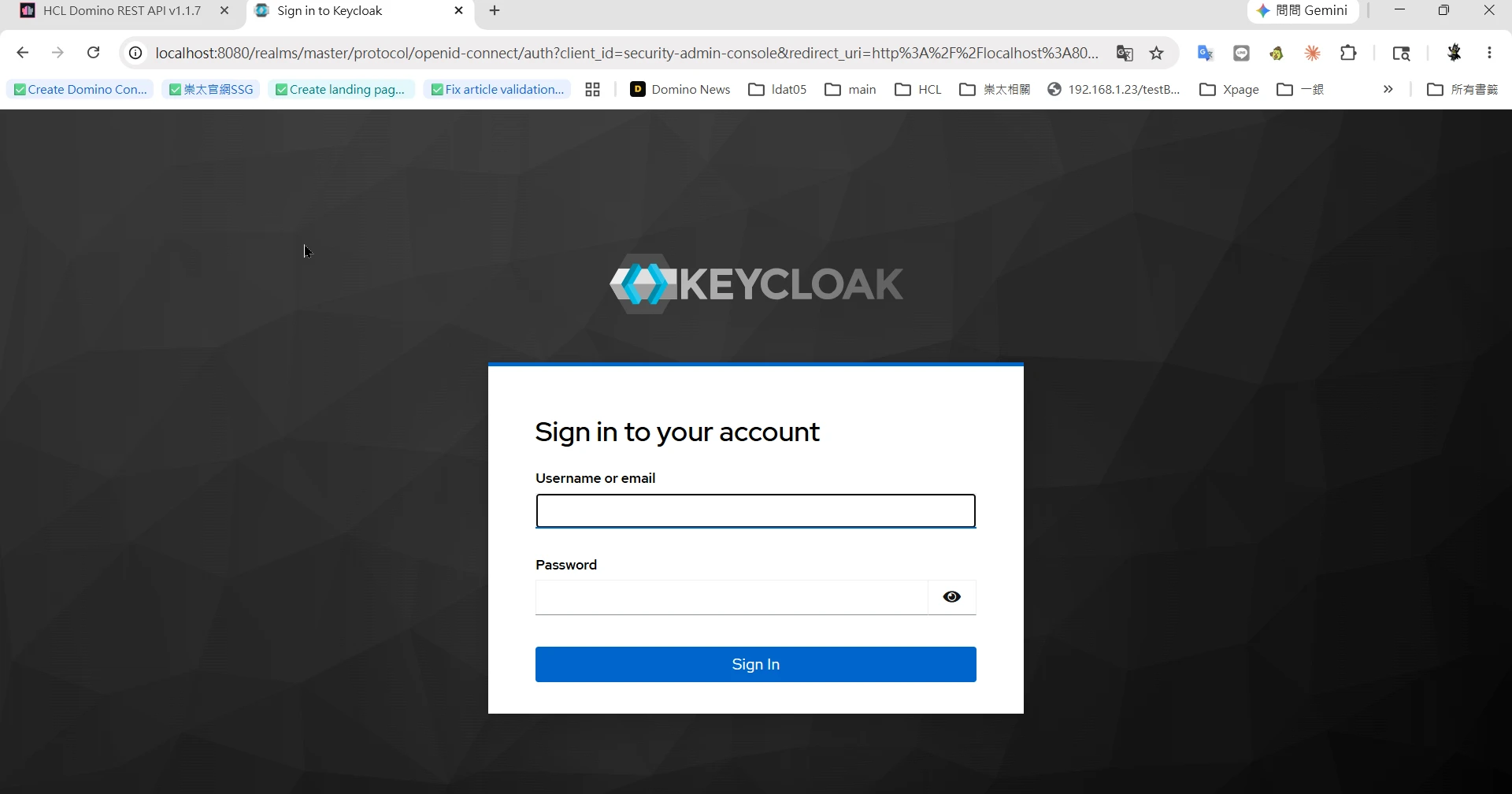
Stage 3: Keycloak setup (admin console localhost:8080)
- Create Realm:
drapi - Create Client Scope
$DATA(Type=Default, Include in token scope=On) - Create Client
keepadminui(for the Admin UI): - Client authentication = Off (public / PKCE)
- Standard flow = On
- Valid redirect URIs:
http://127.0.0.1:8880/admin/ui/*,http://localhost:8880/admin/ui/* - Web origins:
+ - Create Client
Domino(for the server): Client authentication = On, copy the Client secret from Credentials - Audience mapper: on the
$DATAscope add an Audience mapper, Included Custom Audience =Domino, Add to access token = On - Create a test user (later mapped to a real Domino user, see Stage 6)
⚠️ providerUrl path trap: Keycloak 26 realm paths have no
/authprefix (only old docs do). Correct:http://<host>:8080/realms/drapi. Verify by opening…/realms/drapi/.well-known/openid-configuration— it should return JSON.
Stage 4: DRAPI config (keepconfig.d)
Put the file below in keepconfig.d\ under the Domino data dir (here: C:\HCL\Domino1202\Data\keepconfig.d\), then tell restapi quit / load restapi.
{
  "oidc": {
    "keycloak-drapi": {
      "active": true,
      "providerUrl": "http://<WSL_IP>:8080/realms/drapi",
      "clientId": "Domino",
      "clientSecret": "<copy from the Keycloak Domino client>",
      "userIdentifier": "email",
      "userIdentifierInLdapFormat": false,
      "adminui": { "active": true, "client_id": "keepadminui" }
    }
  }
}
Key fields at a glance
| Field | Purpose |
|---|---|
adminui |
The switch that makes this provider appear in the Admin UI login dropdown (active:true + which client_id, usually keepadminui). Without it, the dropdown won't show it (see Gotcha 1). |
providerUrl |
The IdP address DRAPI's backend must be able to reach (fetch metadata, exchange token). Unreachable = provider fails to load and won't appear in the dropdown (see Gotcha 2 — don't use localhost). |
active |
Enable this provider. |
clientId / clientSecret |
Server-side (confidential) client, matching the one registered on the IdP. |
userIdentifier / userIdentifierInLdapFormat |
Which token claim maps to the Domino identity (see Stage 6). |
In one line: to see it in the login dropdown = the
adminuiblock (lists it) + a reachableproviderUrl(loads it) — both are required.

🕳️ Gotcha 1: missing adminui block → redirect to /admin/undefined
Just defining an oidc provider does not make it appear as an Admin UI login option. The Admin UI reads GET /api/v1/auth/idpList?configFor=adminui; a provider must have the adminui block to be listed. Without it only the built-in DRAPI remains (whose wellKnown is the unresolvable -build in-), and the redirect becomes http://127.0.0.1:8880/admin/undefined?....
🕳️ Gotcha 2 (the big one): providerUrl must not be localhost/127.0.0.1
When Keycloak is in WSL and DRAPI is on Windows:
- WSL2 localhost forwarding may only work over IPv6 (localhost/::1); IPv4 (127.0.0.1) fails to connect.
- DRAPI is Java and resolves localhost to IPv4 127.0.0.1 by default → can't fetch metadata → provider fails to load → absent from idpList.
Fix: use the WSL real IP.
wsl -d Keycloak-OIDC hostname -I # e.g. 172.21.200.31
# Verify reachability from the DRAPI host (the same path DRAPI's Java takes)
curl http://<WSL_IP>:8080/realms/drapi/.well-known/openid-configuration   # should return 200
🔎 Maps to real-world ADFS scenarios: at heart it's the same "DRAPI server → IdP server-to-server connection/resolution" failing. On the remote side this is usually a CA not imported into
certstore.nsf/ firewall / DNS; here it's IPv4-vs-IPv6. Always start diagnosis fromcurl <IdP>/.well-knownon the DRAPI host.
Stage 5: OIDC login
Full flow (note the final "backend token exchange" is server→server and needs to trust the IdP cert):
sequenceDiagram
    participant U as Browser
    participant D as DRAPI (8880)
    participant K as Keycloak (IdP)
    U->>D: Click LOG IN WITH OIDC, pick keycloak-drapi
    D-->>U: Return authorization_endpoint
    U->>K: Full-page redirect to login (client_id=keepadminui, PKCE)
    K-->>U: Show login page, user enters credentials
    K->>U: Redirect back to /admin/ui/callback with auth code
    U->>D: Send the code
    D->>K: Backend exchanges code for token (server → server)
    Note over D,K: This step must trust the IdP cert (JVM truststore)<br/>failure = Error fetching token
    K-->>D: Return token
    D-->>U: Login succeeds, enters Admin UI
On the login page click LOG IN WITH OIDC, pick keycloak-drapi in the dropdown, then LOG IN.
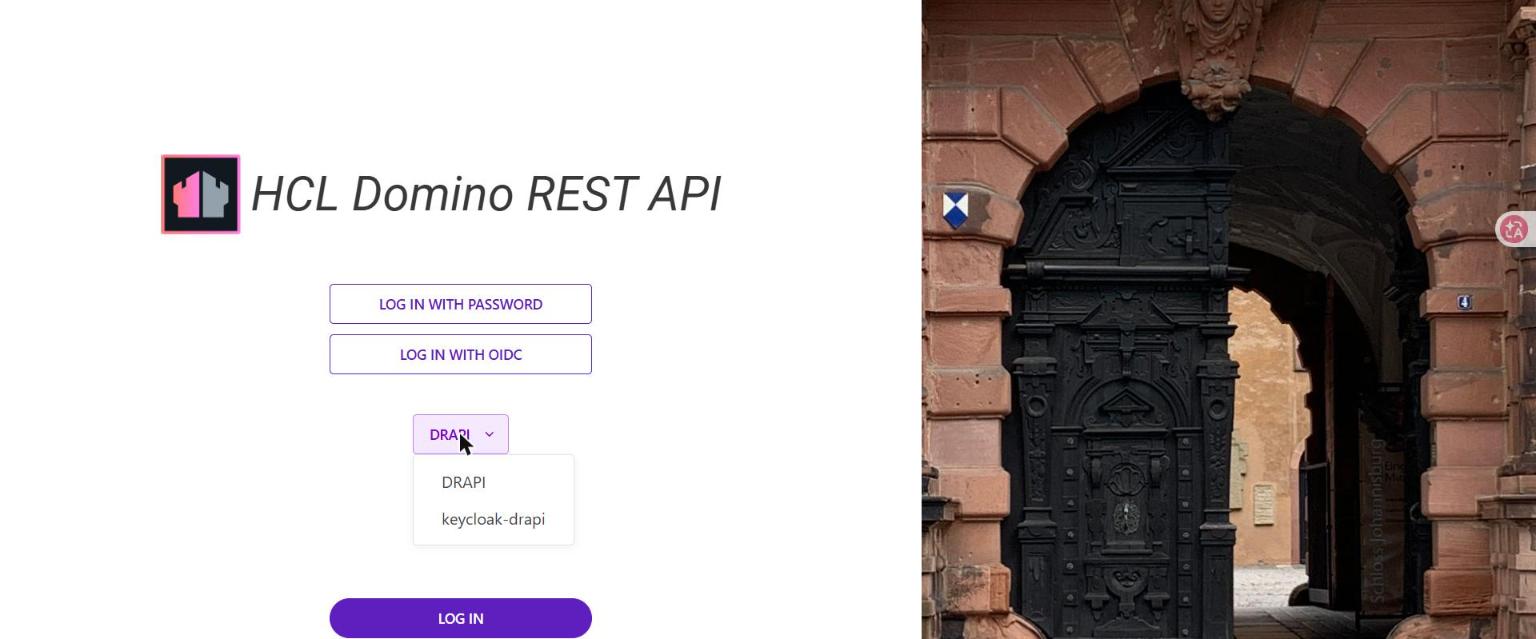
It redirects to Keycloak (URL http://<WSL_IP>:8080/realms/drapi/..., no longer /admin/undefined):
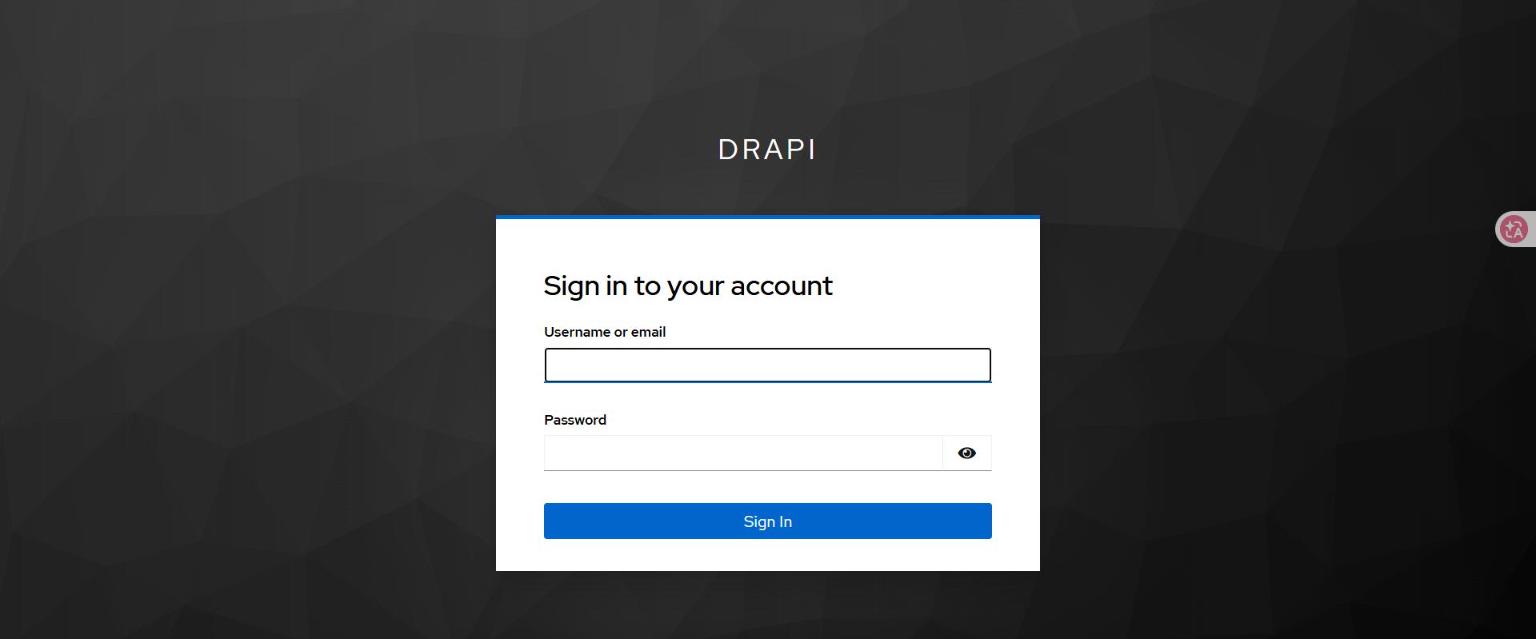
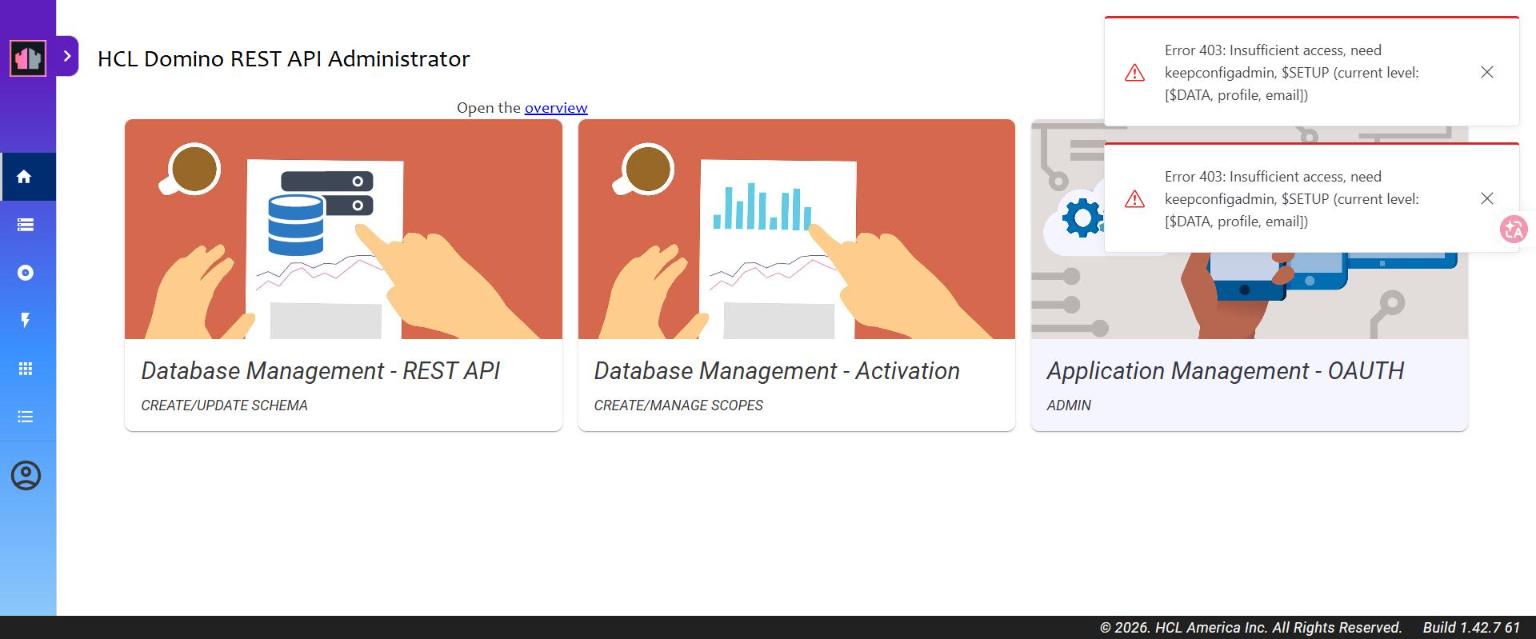
After login you reach the Admin UI. The 403 below is an authorization-layer issue (see Stage 6), not an authentication failure:
🕳️ Gotcha 3: if the dropdown doesn't appear / you picked the wrong one, the browser keeps a stale
oidc_config_url=-build in-in localStorage, causingError initiating authorization request. Clear that origin's localStorage and retry.
Stage 6: Identity mapping + admin authorization
"Logged in and usable" is three independent layers — any one breaking looks like a "login failure":
flowchart TD
    A["1 Authentication<br/>Who are you?"] -->|pass| B["2 Identity mapping<br/>Which Domino person?"]
    B -->|pass| C["3 Authorization<br/>What can you do? (scope)"]
    C -->|pass| OK(["Login OK & usable"])
    A -.->|broken| AF["undefined redirect / token rejected / Error fetching token"]
    B -.->|broken| BF["logged in but 'user not found / no access'"]
C -.->|broken| CF["403 Insufficient access"]| Layer | Question | How it connects |
|---|---|---|
| Authentication | Who are you? | OIDC (oidc mode + external IdP). OIDC login failures usually stick here. |
| Identity mapping | Which Domino person? | token claim ↔ Domino Person, via userIdentifier. The user must exist in the Domino Directory. |
| Authorization | What can you do? | The token must carry enough DRAPI scopes. |
6-1 Identity mapping (email ↔ Internet address)
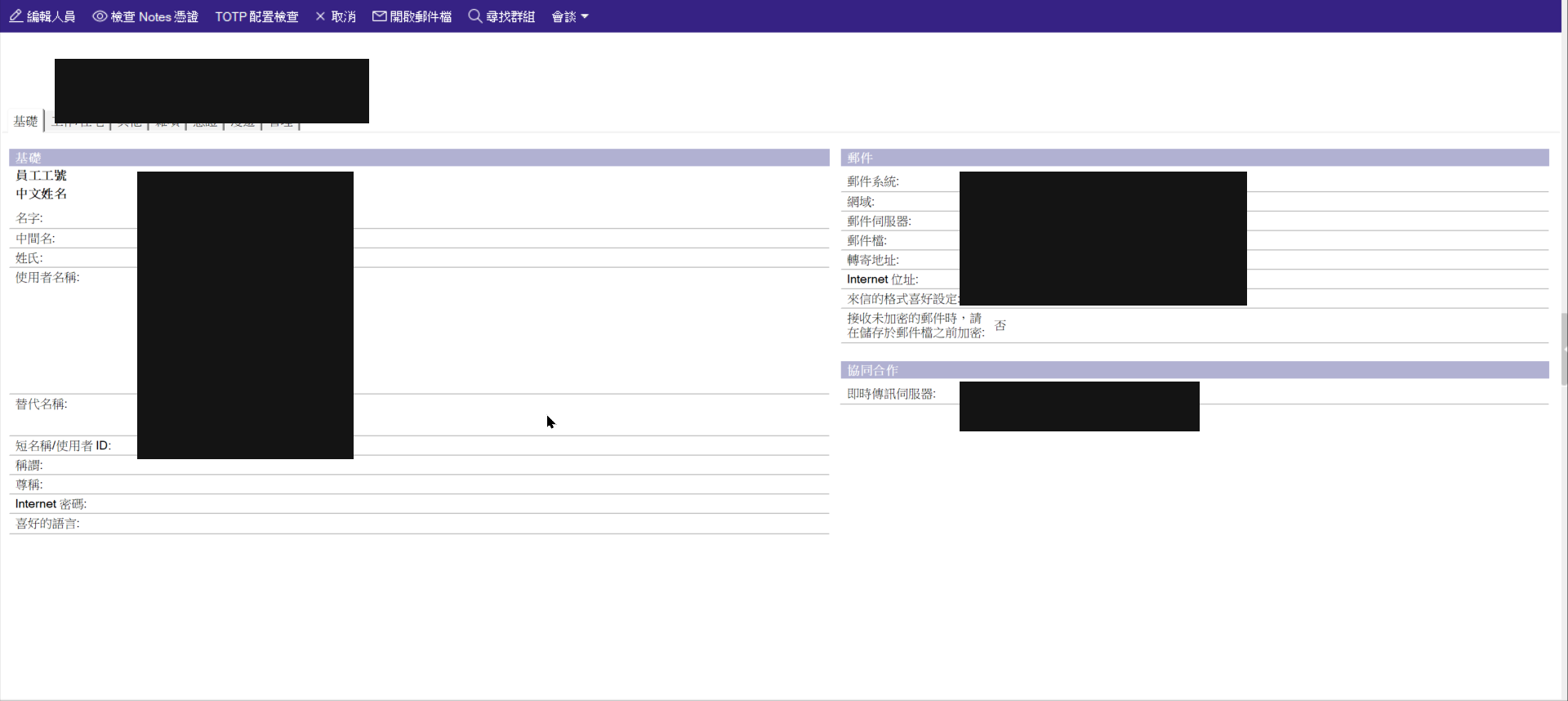
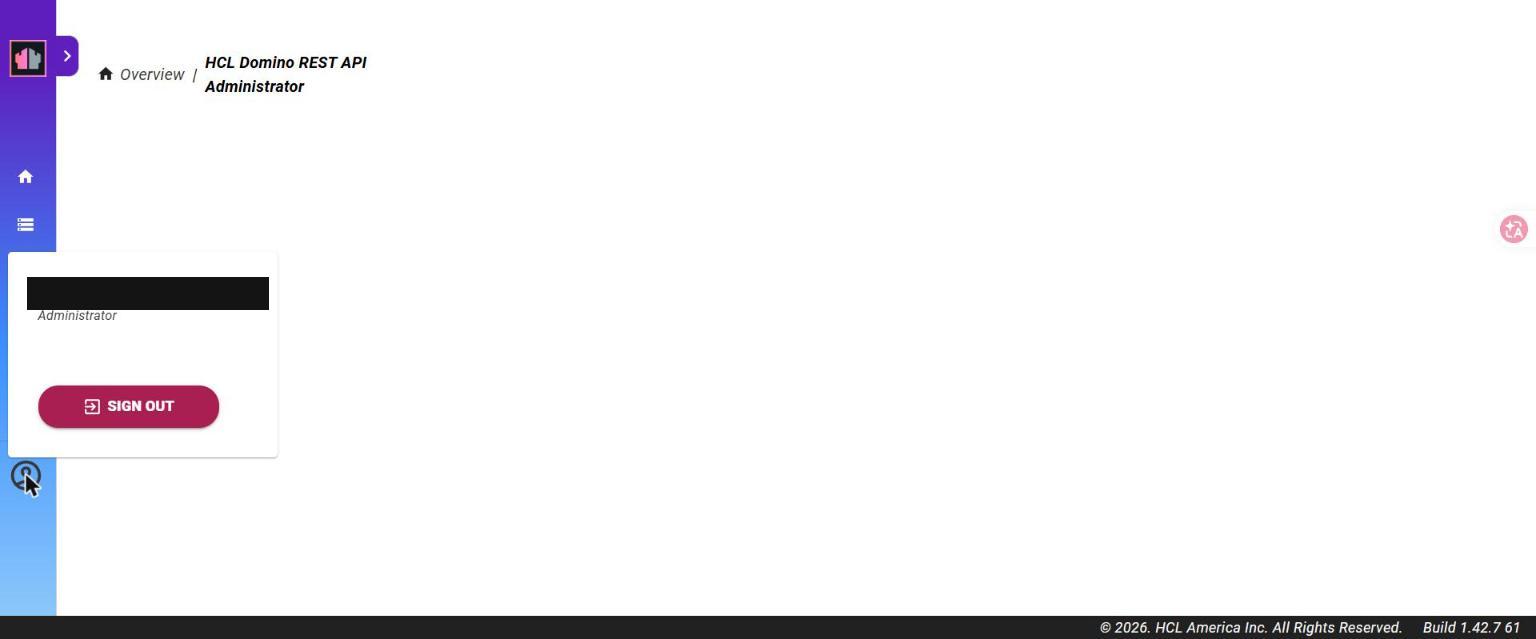
DRAPI userIdentifier: "email" → use the token's email to find the Domino person whose Internet address matches.
Just set the Keycloak user's email to the target Domino Person's Internet address.
6-2 Admin authorization (scope)
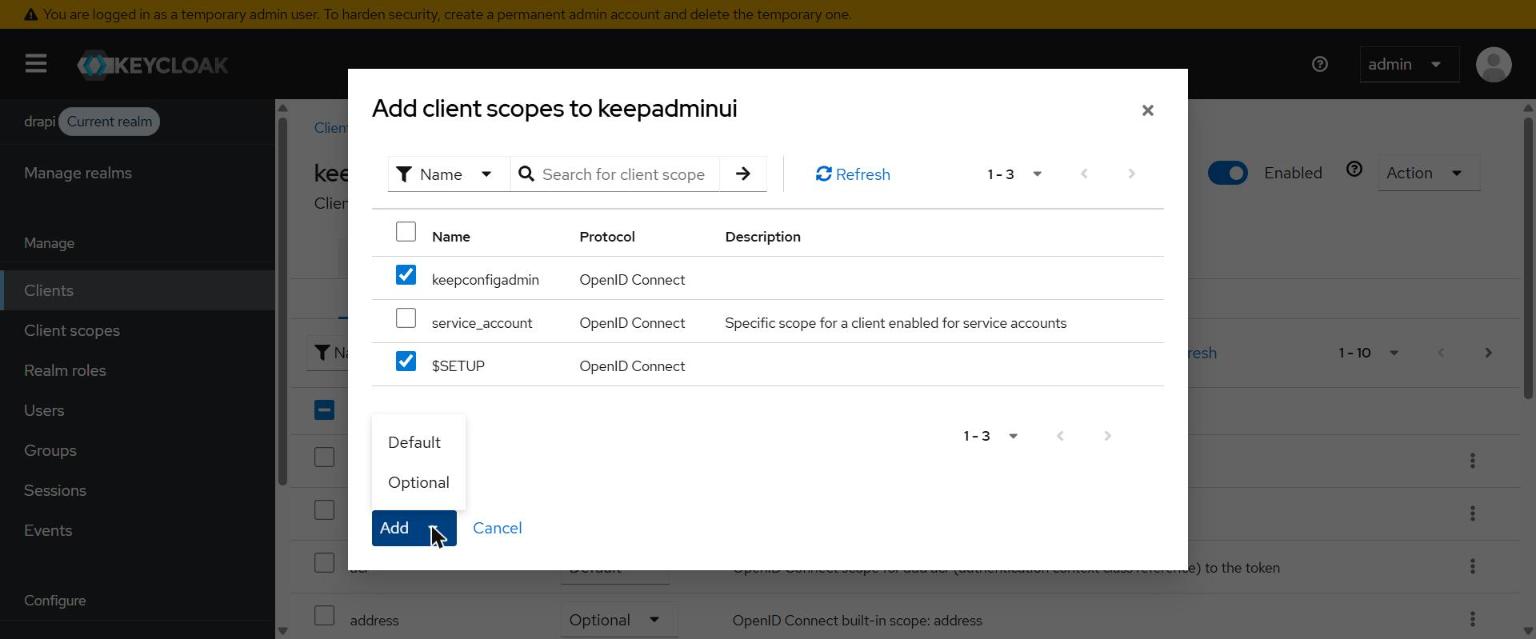
Admin features need the token to carry $SETUP and keepconfigadmin. Create matching client scopes in Keycloak (Default + Include in token scope).
🕳️ Gotcha 4: a Default-type client scope is only auto-attached to clients created afterward — it is not back-filled onto existing clients.
keepadminuiwas created before these two scopes, so add them manually underkeepadminui→ Client scopes → Add. ($DATAworked from the start because it was created before keepadminui.)
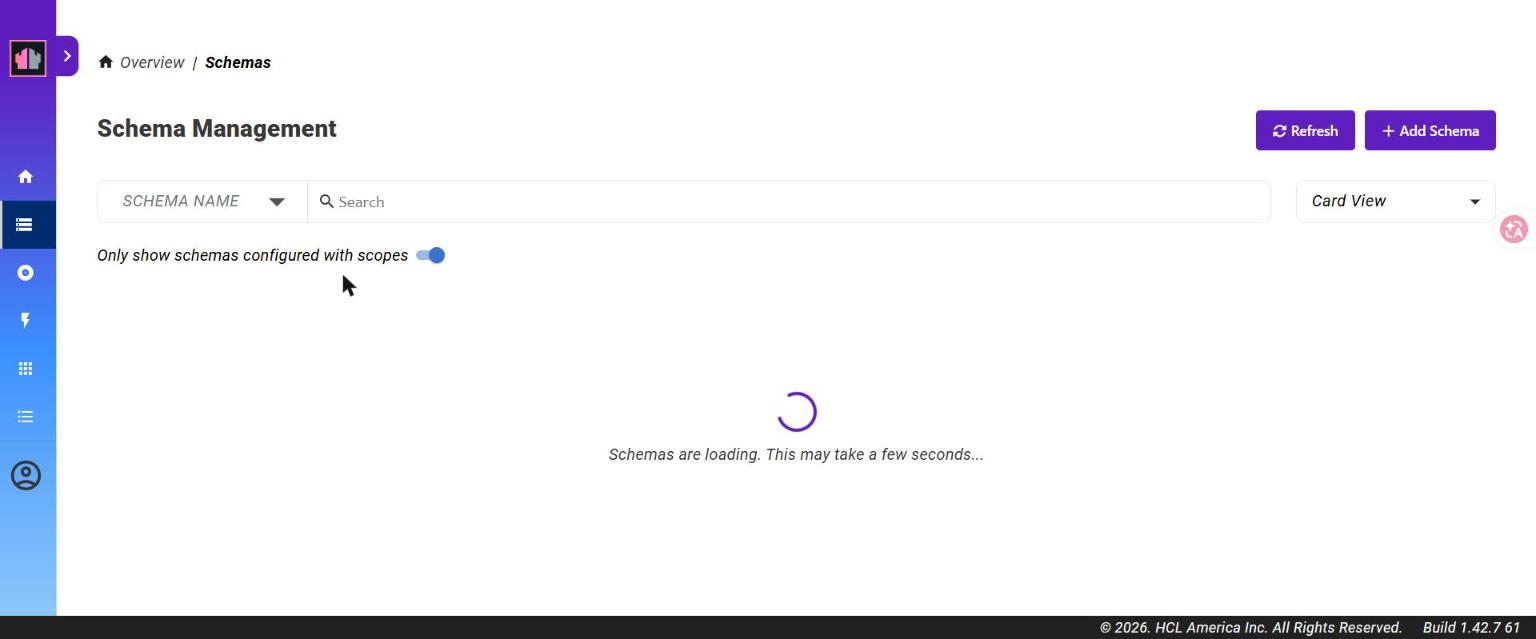
Clear the browser localStorage, log in via OIDC again — the 403 is gone and admin features work:
Gotcha summary
| # | Symptom | Cause / fix |
|---|---|---|
| 1 | Redirect to /admin/undefined |
keepconfig missing the adminui block |
| 2 | provider absent from idpList | providerUrl used localhost; switch to WSL IP (Java goes IPv4) |
| 3 | Error initiating authorization request |
stale oidc_config_url in localStorage; clear and retry |
| 4 | Login OK but 403 need $SETUP/keepconfigadmin |
scope not attached to the existing keepadminui client; add manually |
| — | (myth) trying to set CORS on the IdP | OIDC login is redirect + server-to-server, not subject to CORS; CORS belongs on the DRAPI side |
Result
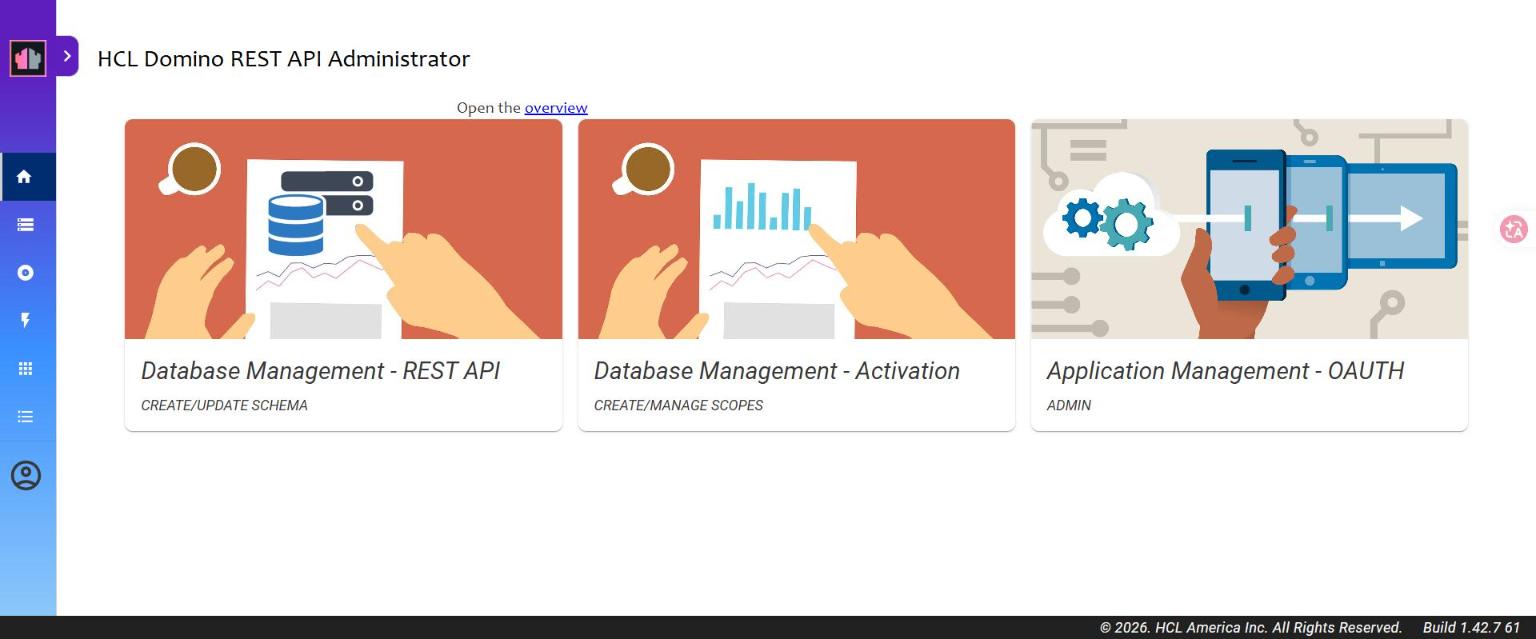
From zero to OIDC login success, identity mapping and admin authorization all working:
References
- Official docs: https://opensource.hcltechsw.com/Domino-rest-api/
- Configure DRAPI to use an OIDC provider / Configure Keycloak / Set up external IdP for Admin UI / Auth* reference