
Multi-File Upload and Selective Attachment Delete in Domino: Classic Web and XPages 14.5.1
The last piece finished “attach one file in three contexts.” Real needs usually go one step further: upload many files at once, and the reverse — delete attachments, which in practice means picking the ones that match a condition, not wiping them all. Both have a wrinkle worth telling: XPages only got native multi-select in 14.5.1, and “delete by criteria” is the common case yet the thinly-documented one.
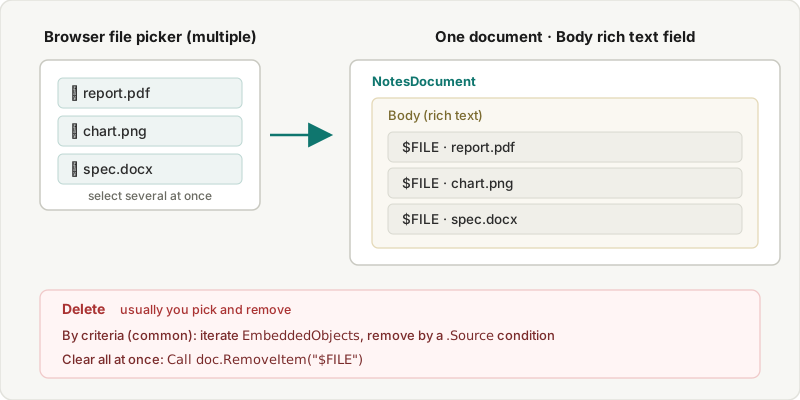
Let’s pin the conclusion with a figure first: however many files you pick, they all land in the same rich text field of the same document as multiple $FILE attachments — and that structure is what you later read, pick from, and delete by.
TL;DR
- Classic web form: selecting multiple files at once comes from the HTML5
multipleattribute — the blogger’s “one word”. Add it to the File Upload control and the picker goes from single to multi-select. - XPages: native only since Domino 14.5.1 — “The XPages file upload UI now supports multiple selections by default.” Before that, multi-file was the domain of OpenNTF community controls.
- Deleting is mostly “pick and remove”: iterate
EmbeddedObjectsandRemoveby a condition on.Source(the original file name) — this delete-by-criteria case is the least documented and the most common one (runnable example below); to clear everything at once,Call doc.RemoveItem("$FILE")does it in one line. - Each multi-selected file stores as its own
$FILE(verified): this classic-web trick is browser behavior, not an official HCL feature, but we tested it — select 3 files and the document holds 3 separate$FILEitems (screenshot below).
Multi-file upload (1): the classic-web “one word”
A classic web form’s File Upload Control is one file at a time by default. Jesper Kiaer of nevermind.dk points out a one-word old-school fix: add the HTML5 multiple attribute and the picker switches from single to multi-select.
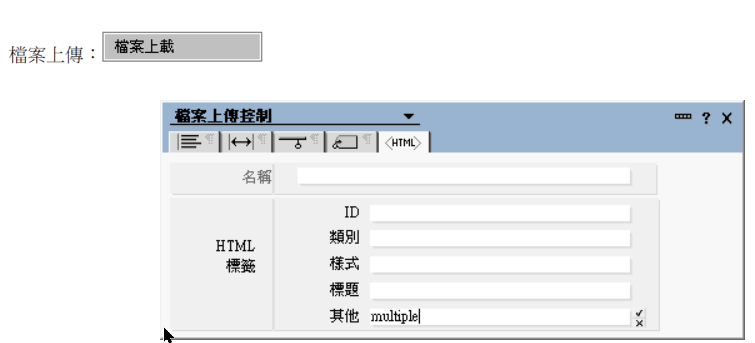
Where exactly? Open the File Upload Control properties box → the “HTML” (<HTML>) tab → the “Other” field and type multiple:
We tested this in Domino Designer for the site. With multiple set, the file dialog that opens from the web “Choose File” button lets you pick several at once:
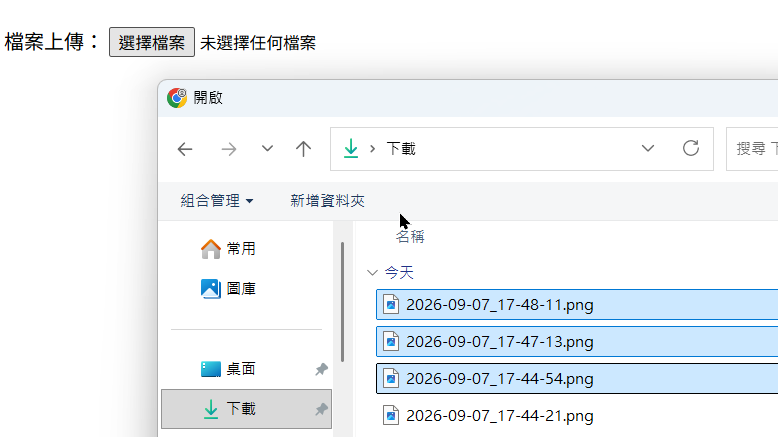
Pick a few, and the button shows “3 files” — multi-select works:

(The author also flags a Designer quirk: insert the control from the menu to be safe — cut-and-pasting it can render wrong.)
To be clear: multiple is pure browser HTML5 behavior, not an official HCL feature for classic web forms — it isn’t built-in-and-in-the-What’s-new the way XPages 14.5.1 is. But as for whether each submitted file lands as its own separate $FILE, we tested it to the end on our own box: select 3 files, submit, save, then open the document’s field inspector — there are three separate $FILE fields (each of data type attachment/file):
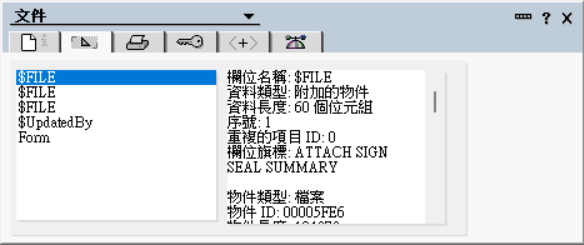
So the conclusion is clear: each file selected via multiple is stored by Domino as its own separate $FILE. Reading or deleting them afterward is business as usual (rtitem.EmbeddedObjects, doc.GetAttachment; see LotusScript attachment handling).
Multi-file upload (2): XPages got it built-in in 14.5.1
The XPages path is more interesting because it has a clear before/after.
Before 14.5.1: xp:fileUpload took one file at a time. For multi-select you reached for a community control — OpenNTF has carried a few for years, such as Mark Leusink’s XPages Multiple File Uploader (early on using Flash/SWFUpload for multi-file selection and progress bars), and later Julian Buss’s HTML5 multi-file upload control. These filled the official gap for a long time.
⚠️ But Leusink’s uses Flash/SWFUpload, and Flash reached end-of-life at the end of 2020 and has been removed from every modern browser — today it just throws “You need the Flash Player 9.028 or above” and won’t run, and Flash can’t be reinstalled. So if you’re pre-14.5.1 and need multi-file, use Buss’s HTML5 control (no Flash), not the Flash one — or just use the classic-web multiple above.
Since 14.5.1: HCL finally built it in. The 14.5.1 What’s new says it in one line — “The XPages file upload UI now supports multiple selections by default.” Note it’s a change to the default behavior, not a new property (which is why xp:fileUpload’s property list didn’t change) — you don’t touch your XSP; upgrade and it’s there. That page is terse (one sentence plus two screenshots); after multi-selecting, the files attach to the rich text field the control is bound to (the same model as a single file). The screenshots and finer detail are on that page.
So the advice today is simple: on 14.5.1+, use the built-in multi-select; only reach back for the OpenNTF community controls if you’re on an older release and need multi-file.
Deleting: in practice it’s “pick and remove,” not “clear all”
Upload done — now the reverse. Most tutorials only show removing one, but in real life clearing all of a document’s attachments at once is the rare case. What you actually hit daily is selective delete: drop only the .tmp scratch files, only an old version, keep just the latest, clear anything over some size. And that “delete by criteria” is exactly what’s thinly documented — so that’s what this piece leans into.
Pick one (GetAttachment + Remove). If you already know the file name to delete, this is the most direct: doc.GetAttachment(name), then Remove. The docs note “After calling the Remove method, you must call the Save method in NotesDocument to save the change that you made” — save after removing for it to take:
Dim eo As NotesEmbeddedObjectSet eo = doc.GetAttachment("report.pdf") ' pick one specific attachmentIf Not eo Is Nothing Then Call eo.ExtractFile("C:\backup\report.pdf") ' back it up first (optional) Call eo.Remove Call doc.Save(True, False) ' save after Remove for it to takeEnd IfDelete several by criteria (iterate EmbeddedObjects). This is the main event. When you’re not deleting a fixed file name but “everything that matches a condition,” iterate the rich text field’s EmbeddedObjects, look at each attachment’s .Source (its original file name), and Remove only the ones that match. The snippet below clears every .tmp attachment and keeps the rest — swap the .Source test for your own condition (extension, name prefix, or a list you backed up earlier):
Dim rtitem As NotesRichTextItemDim eo As NotesEmbeddedObjectDim removed As Integer
Set rtitem = doc.GetFirstItem("Body")             ' which rich text field holds the attachmentsIf Not rtitem Is Nothing Then    ForAll o In rtitem.EmbeddedObjects            ' array snapshot — deleting in the loop is safe        Set eo = o        If eo.Type = EMBED_ATTACHMENT Then        ' attachments only (skip OLE objects/links)            If LCase(Right(eo.Source, 4)) = ".tmp" Then   ' <- your own condition here                Call eo.Remove                removed = removed + 1            End If        End If    End ForAll    If removed > 0 Then Call doc.Save(True, False) ' save only if something changedEnd If
This is exactly what HCL’s official EmbeddedObjects example does (test, Remove, and Save in the loop). Don’t skip the .Type = EMBED_ATTACHMENT filter — the same rich text field can also hold OLE objects or object links, and without the test you’d delete those too.
(One clarification on a common worry: “removing while iterating skips elements” is a rule for live, mutating collections — like NotesDocumentCollection or NotesView — not for EmbeddedObjects, which returns a snapshot array, so it’s unaffected; delete in the loop with confidence.)
⚠️ But decide first: where does this code run? The back-end loop above has an easily-missed premise — Remove + Save hits the back-end document directly and commits right away, whether or not someone has that document open and is editing it. And selective delete tends to happen exactly in the interactive case — a user looking at their own attachments, deciding which to drop — so all three failure modes are in play: the user hits Cancel, thinks nothing changed, but the attachment is already gone from disk (no undo); the user hits Save and collides with your back-end Save into a save conflict; and once removed, it’s unrecoverable. This is really why a clean “selective delete” recipe is scarce — the hard part isn’t the loop, it’s the timing.
So split it by context:
- A batch/scheduled context where nobody has the document open — this is where the back-end loop above belongs. Run it in a scheduled agent,
doc.Lockfirst to avoid racing replication or another agent, andExtractFileto back up beforeRemove(there’s no rollback — the backup isn’t optional). - A user editing, who should pick what to delete themselves — don’t reach behind them with a back-end agent; take the path that commits on their save: on classic web that’s the
%%Detachcheckbox covered in the piece on web attachment UI (tick it, delete happens when they save — clean); on XPages, use the official attachment control’s delete through the data source’s save lifecycle, not a back-enddoc.Savebehind them.
As for XPages doing the checkbox-multi-select “delete the selected several at once” experience — the built-in xp:fileDownload only gives you one [x] per row; there’s no native multi-select batch delete. That takes building yourself, and building it to respect the save boundary — worth its own piece (in the works).
When you really do want to clear everything: the one-liner (RemoveItem). For the rarer “nuke them all” case: attachments live on the document as items named $FILE, and RemoveItem’s docs state “If more than one item has the specified name, all items with this name are deleted.” — same-named items go all at once, so clearing everything needs no loop:
Call doc.RemoveItem("$FILE") ' removes every $FILE at once, clearing the document's attachmentsCall doc.Save(True, False)One detail: $FILE is the attachment body; if the rich text content still holds icon references pointing at attachments, deleting just $FILE may leave icons on screen (a common community caution, not verbatim official — verify for your case). As for Formula, there’s no clean “batch-delete attachments” @Command — for batch, use the LotusScript above.
Wrap-up
“Many at once” has a recent story on both ends in Domino: on upload, classic web uses HTML5 multiple (lightweight — and we verified each selected file stores as its own $FILE), and XPages got native multi-select by default only in 14.5.1 (OpenNTF before that); on delete, the common case is pick-and-remove — iterate EmbeddedObjects and Remove by a .Source condition (a snapshot array — the official example iterates-and-removes), with doc.RemoveItem("$FILE") as the one-line clear-all for the rarer full wipe. For the “one file, three contexts” basics, see the previous piece; for the backend list/extract details, see LotusScript attachment handling.
Sources
- XPages support for multiple file uploads — HCL Domino 14.5.1 What's new
- RemoveItem method (NotesDocument) — HCL Domino Designer
- Remove method (NotesEmbeddedObject) — HCL Domino Designer
- Old-school Domino web dev — upload multiple files, just one word (Jesper Kiaer, nevermind.dk)
- XPages Multiple File Uploader (Mark Leusink) — OpenNTF