DAOS: Move Attachments Out of the NSF
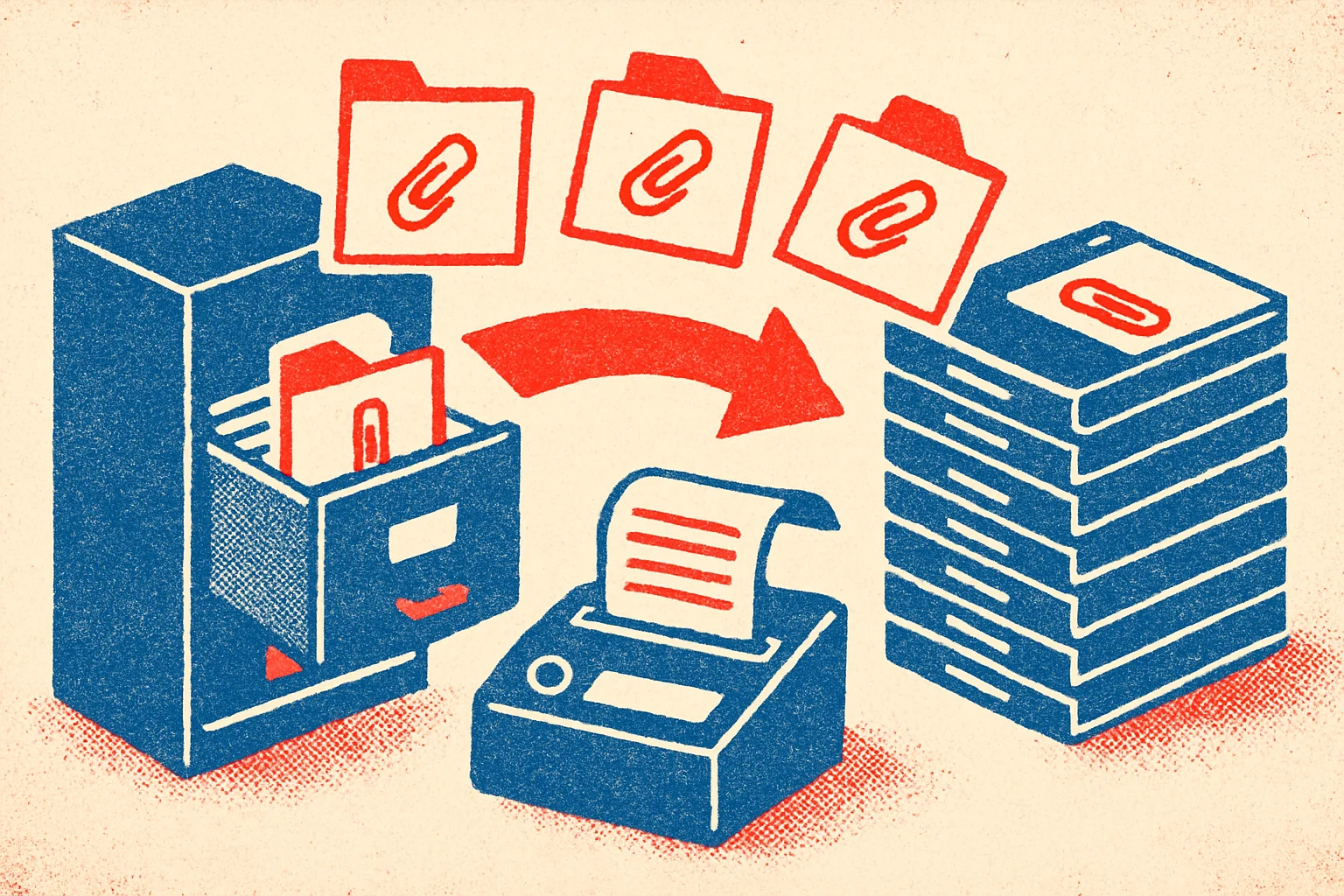
The same quote PDF, emailed to 30 people and then filed into a few databases by different departments — traditionally that attachment is stored as a full, separate copy inside every document. That’s a big part of how NSFs bloat.
DAOS (Domino Attachment and Object Service) does something direct: it moves attachments out of the NSF and de-duplicates them into a single file (.nlo) on the server, leaving just a reference in the document. However many documents or databases point at the same attachment, there’s one copy on disk. But there’s a prerequisite people often miss before enabling it — you must enable transaction logging first (what that is, how to enable/check it, in Domino transaction logging).
TL;DR
- What it does: Domino “no longer saves a separate and complete copy of every document attachment” — an identical attachment is stored once on the server as a
.nlo, and the document keeps a reference called a ticket pointing at it. - When de-dup happens: at the moment the user saves, not in a later maintenance task.
- Prerequisite: enable transaction logging first. Every NSF that participates in DAOS must also be transaction-logged — so the attachment content is in the log and the
.nlofiles can be recreated if the log is replayed. - How to enable: on the Server document’s DAOS tab (set the base path / minimum size), then select the Advanced database property “Use Domino Attachment and Object Service” on each database that should participate. A restart is required.
- Tier 2: long-unaccessed
.nloobjects can be moved to S3-compatible storage byDAOSmgr, freeing your front-line disk. - Don’t forget: enabling DAOS only applies to attachments saved afterward; existing attachments need a copy-style compact (
compact -c -daos on) to move them into DAOS and shrink the NSF — and-creassigns the DBIID, so take a fresh full backup afterward.
What it does: attachments out of the NSF, de-duplicated
Normally every document carries its own full copy of its attachment data. With DAOS on, Domino no longer saves a separate and complete copy for every document (official):
- De-duplication: each attachment is stored once in a shared internal repository, and multiple documents across databases on the same server reference that single copy. Domino uses a mapping to identify identical attachments and adjusts the references when users delete, replace, or copy them.
- What stays in the NSF: not the attachment bytes, but a reference — officially a ticket — that identifies the attachment’s location in the repository.
- Where the data lives: in the repository, stored as
.nlofiles (DAOS objects). If a directory exceeds the operating system’s file limit, Domino creates subdirectories.
Note the timing: de-dup happens the instant the user saves, not later via some task — unlike compact-style after-the-fact maintenance.
The prerequisite: enable transaction logging first
This is where people get stuck: DAOS requires transaction logging on the server (the official steps open with “Make sure that transaction logging is enabled on the Domino server”).
The reason is consistency: for a participating NSF whose attachments have moved out to external .nlo files, the relationship between the NSF and its .nlo files must be recorded in the transaction log — so that if the server crashes and recovery replays the log, those .nlo files are recreated and nothing is left dangling. So get logging on and confirmed first (enabling and checking it is in the transaction logging piece), then enable DAOS.
How to enable: the Server tab + a database property
DAOS turns on in two layers — the server first, then each database joins (official setup steps):
Server level (the Server document’s DAOS tab):
- Store file attachments in DAOS: set to Enabled.
- DAOS base path: the path to the attachment repository. HCL strongly recommends a full path outside the Domino data directory (it creates the directory if it doesn’t exist).
- Minimum size of object before Domino will store in DAOS: attachments smaller than this many bytes aren’t moved — consolidating tiny attachments saves little and isn’t worth it.
- Defer object deletion for n days: 0 to 9999. After the last document referencing an object is deleted, the
.nlois kept for a few more days before it’s actually removed — a buffer against accidental deletion. - This tab also has DAOS object encryption (None / Private to this server / Shared) and an encryption strength (Domino classic / AES-128 / AES-256) — whether the
.nlofiles are encrypted, and whether they can be shared across servers, is set here. - Save and restart for it to take effect.
Database level: it isn’t a whole-server flip — each database that should participate needs the Advanced database property “Use Domino Attachment and Object Service” selected. Databases without it keep attachments inside their documents. One caveat: selecting it only applies to attachments saved afterward — attachments already in the database don’t move on their own; that takes the copy-style compact below (and if you don’t see the option, the database’s ODS is usually too old).
Tier 2: moving cold attachments to S3
The .nlo files tier too. DAOS tier 2 storage (Domino 11 and later) lets you move attachment objects that haven’t been accessed within a set number of days from the server’s local disk (tier 1) to an S3-compatible storage service (tier 2), via the DAOSmgr task — keeping your front-line disk for hot data (official tier 2). From Domino 12 you can also share encryption keys across participating DAOS servers.
Don’t forget: existing attachments need a copy-style compact
A common misconception: once DAOS is enabled on the server and the database, the NSF shrinks on its own. It doesn’t — as the previous section noted, selecting the property only applies to attachments saved afterward; attachments already sitting in the NSF don’t move into .nlo on their own, and that space isn’t reclaimed on its own either.
To move the existing attachments into DAOS and actually shrink the NSF, run a copy-style compact with the DAOS option on that database: compact -c -daos on (copy-style vs in-place is covered in the maintenance-commands piece). Note you can’t use in-place compaction — the DAOS option isn’t available under in-place -b, and -b won’t move existing attachments.
And a copy-style compact (-c) reassigns the database’s DBIID — it’s one of the operations the transaction logging piece calls out as changing the DBIID and invalidating the old log — so take a fresh full backup afterward to rebase it on the new DBIID.
Wrap-up
- What it is: attachments move out of the NSF, de-duplicated into a single
.nloon the server, with only a ticket reference left in the document. - When it de-dups: at the moment the user saves, not later.
- Prerequisite: enable transaction logging first (every participating NSF must be logged).
- How to enable: the Server document DAOS tab (base path outside the data dir, set the minimum size and deferred deletion), then the “Use Domino Attachment and Object Service” property on each database, and restart.
- Tier 2: move cold
.nloobjects to S3 withDAOSmgr. - Don’t forget: selecting the property only affects new attachments; existing ones need a copy-style compact (
compact -c -daos on, not in-place-b) to move into DAOS and shrink the NSF, and-creassigns the DBIID — take a fresh full backup afterward.
Sources
- Attachment consolidation (the DAOS mechanism: de-dup, the ticket reference, .NLO files) — HCL Domino (official)
- Specifying server settings for attachment consolidation (enable translog first, the Server DAOS tab, base path, minimum size, deferred deletion, database property) — HCL Domino (official)
- DAOS tier 2 storage (move long-unaccessed attachments to S3-compatible storage with DAOSmgr) — HCL Domino (official)