Two Paths to HCL Domino on Container — Pull a Pre-built Image or Build Your Own
TL;DR
- Containerizing Domino isn’t new — the community was doing it back in the IBM V9 days, and HCL has shipped official pre-built container images for download since V10; as of writing (2026-05), the latest release is Domino 14.5.1 (Domino 2026)
- HCL gives you two paths:
- (Path A) Download an official pre-built container image TAR from My HCLSoftware Portal and
docker loadit — fast, fits standard deployments - (Path B) Use the GitHub
HCL-TECH-SOFTWARE/domino-containerproject to build your own — flexible, fits custom module combinations
- (Path A) Download an official pre-built container image TAR from My HCLSoftware Portal and
- Path B’s
build.shis an interactive menu: tick the modules you want (Domino / Traveler / Verse / Nomad / REST-API / Leap / Domino IQ / OnTime / C-API SDK / Language Pack) plus add-ons (Prometheus, Borg Backup, nshmailx) → 5-8 minutes to a custom image - Base OS defaults to Red Hat Enterprise Linux 10 UBI; supports Docker / Podman / Rancher Desktop / Kubernetes / OpenShift
- Typical scenarios: dev / lab, CI testing, production (with K8s)
Is “Domino on Container” really a thing?
The “Domino only runs on bare-metal servers” image is out of date.
This goes back further than many people realize. When IBM was still selling Notes/Domino, community members were already writing Dockerfiles to package Domino into containers as far back as V9 (2013) — Ulrich Krause’s August 2017 blog post is one of the publicly documented early examples. HCL took over the official container story with V10 in 2018: Thomas Hampel created the IBM/domino-docker repo under IBM that November as the “official” container project starting point. Daniel Nashed later picked up most of the maintenance, and the repo eventually moved from IBM to HCL — today it lives at HCL-TECH-SOFTWARE/domino-container, and maintenance customers have had official pre-built container images to download ever since. By Domino 14.5.1 (Domino 2026) — the latest release as of writing (2026-05) — that path is well-trodden, with community members running containers for dev environments, CI, even production (with Kubernetes or OpenShift).
There are two ways to get a Domino container image:
(A) Download a pre-built image — HCL ships ready-to-go container images via the My HCLSoftware Portal Domino downloads page for customers on an entitlement. Grab the TAR archive, docker load it locally, and you have a running container. That’s the fastest path.
(B) Build your own — HCL also open-sources the build tooling on GitHub: HCL-TECH-SOFTWARE/domino-container. Clone the repo, run the interactive build.sh menu, pick whichever module combination you want, and 5-8 minutes later you have your own custom image.
The rest of this article focuses on Path B — that’s where the real flexibility of the Domino container world lives. Path A is simple enough that there’s not much to say (docker pull + docker run); Path B is the interesting story.
Why would you build your own?
A few angles:
1. Custom module mix — different scenarios need very different combos:
- Mail / app server only → plain Domino
- Web client → Domino + Verse
- Mobile push → Domino + Traveler + Nomad
- Modern app dev → Domino + REST-API + Leap
- AI → Domino + Domino IQ
Pre-built images come in “typical combinations” — the module granularity may not perfectly match your needs. Self-building means you trim down to exactly the modules you need — smaller image, smaller attack surface.
2. Fixpack / hotfix freshness — build today and today’s hotfix is inside. Pre-built image cadence is tied to HCL’s release cycle; there’s a lag between a new hotfix shipping and a registry image becoming available. Self-build keeps the supply chain in your hands.
3. Base OS and add-on choice — the default base is Red Hat Enterprise Linux 10 UBI; switch to Ubuntu / Rocky by editing build.cfg. Want a Prometheus exporter, a Borg backup agent, or your in-house ISV add-on? Build it in.
4. Language Pack customization — built-in support is six LPs (DE / ES / FR / IT / NL / JA). Adding Traditional Chinese / Simplified Chinese / Korean requires extending the build flow yourself.
→ In short: Path A for speed, Path B for flexibility. Scenarios with strict module-level customization, compliance + supply-chain transparency, or alignment with hotfix flow → Path B.
How customizable is build.sh?
Clone HCL-TECH-SOFTWARE/domino-container, run ./build.sh menu, and you get this interactive menu:
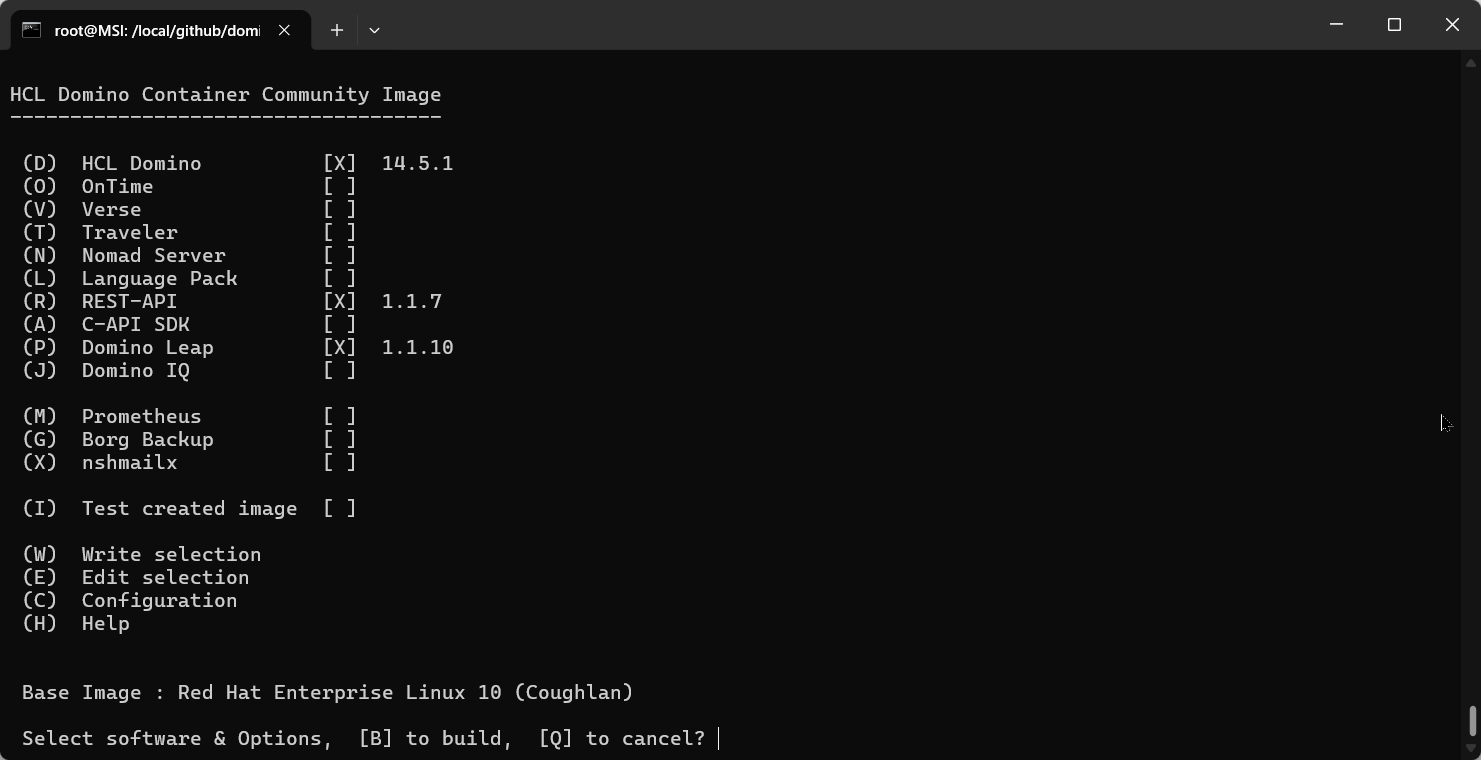
The products on the main menu:
| Code | Module | What it does |
|---|---|---|
| (D) | HCL Domino | The server itself |
| (O) | OnTime | Group calendar |
| (V) | Verse | Modern mail web client |
| (T) | Traveler | Mobile sync (iOS / Android) |
| (N) | Nomad Server | Notes client in the browser / on mobile |
| (L) | Language Pack | LP (built-in: DE / ES / FR / IT / NL / JA) |
| (R) | REST-API | Domino REST API |
| (A) | C-API SDK | For native add-in developers |
| (P) | Domino Leap | Low-code app builder |
| (J) | Domino IQ | Built-in LLM + RAG (Domino 14.5+) |
Add-ons: (M) Prometheus, (G) Borg Backup, (X) nshmailx — common companions for containerized monitoring / backup / outbound SMTP.
Base OS: defaults to Red Hat Enterprise Linux 10 UBI (the no-license-cost universal base image). You can switch to other UBI / Ubuntu / Rocky bases by editing build.cfg.
Versions: pick “latest” or pin a specific version + Fixpack + Hotfix.
Tick what you want, hit B (Build), wait 5-8 minutes:

hclcom/domino:14.5.1 — about a 3GB image, containing everything you ticked.
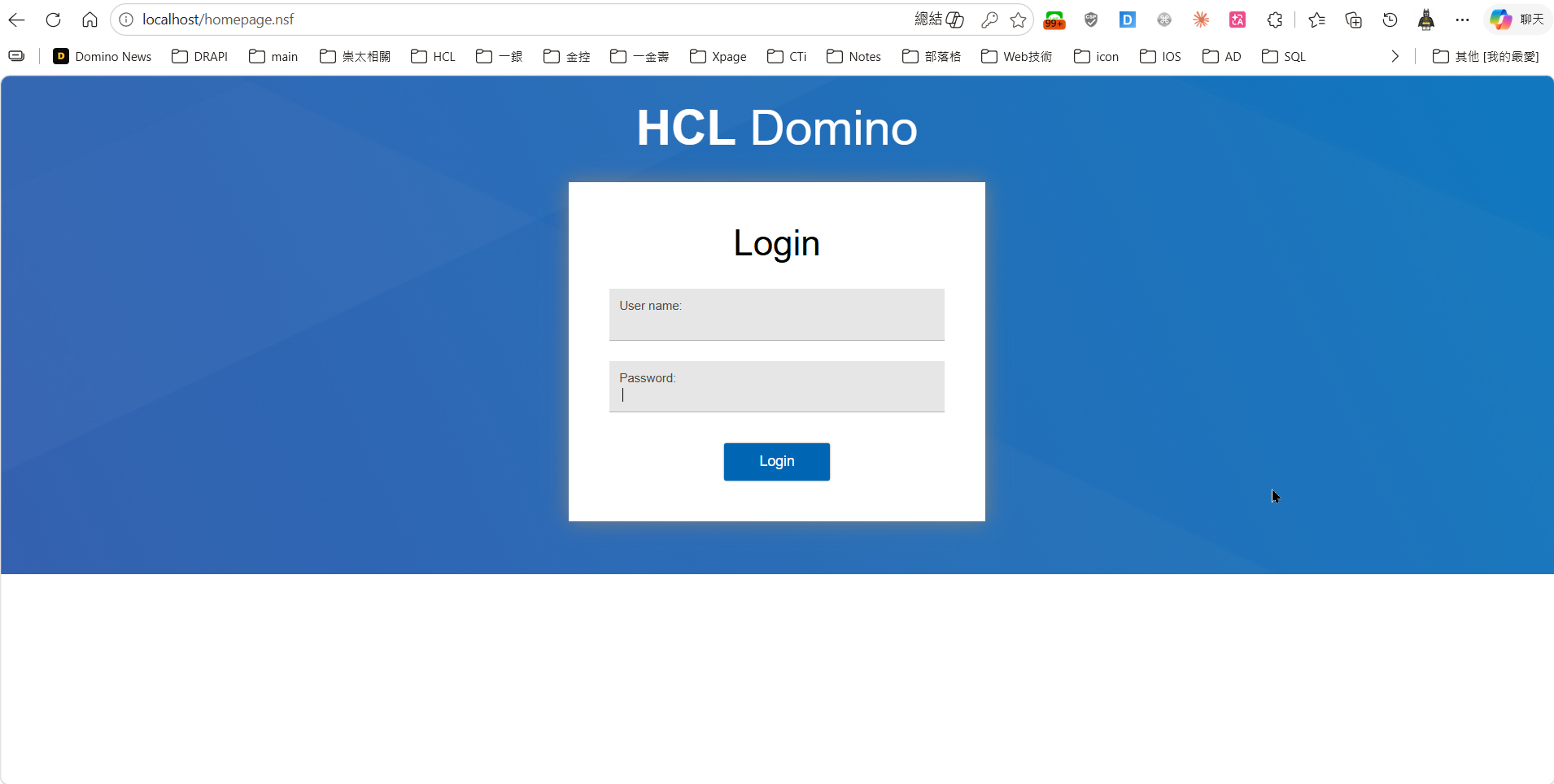
docker run it, point a browser at localhost, and you’re at the Domino login page:
Typical deployment scenarios
Dev / Lab — personal learning, ODP development, DQL practice, cross-version compatibility testing. WSL2 + Docker is a popular combo (Windows users can run it too). Build a clean environment for each experiment, blow it away if you break it.
CI / automated testing — spin up a fresh Domino container per push, run unit / integration tests, tear it down. Much cleaner than maintaining a shared test server.
Production — HCL has official K8s and OpenShift deployment guides. Production setups typically pair this with persistent volumes, external NSF storage, and Helm charts.
Worth noting: Daniel Nashed — one of the main community maintainers of this project — has extensive blog posts about production-grade container deployments. Search “nashcom domino container” to find them.
Want to give it a spin?
Path A (fastest) — Pull pre-built image:
# Sign in to My HCLSoftware Portal (https://my.hcltechsw.com/downloads/domino/domino)# with your entitlement account and download the Domino container image TARdocker load -i Domino_14.5.1_container.tar# Check `docker images` for the loaded image name + tag, then run itdocker run -d --name domino -p 80:80 -p 1352:1352 hclcom/domino:14.5.1Path B (flexible) — Build your own:
What you need:
- A My HCLSoftware Portal account — you have one if you have a Domino maintenance contract; otherwise apply for a 90-day trial. Download the Domino 14.5.x Linux installer (
Domino_14.5.x_Linux_English.tar). - Docker / Podman — Docker Desktop (macOS / Windows), Docker Engine (Linux), or Podman all work.
- ~10GB of disk space — installer + base image + final image
- About an hour — first run goes into figuring out the directory layout and downloading installers; second run takes < 10 minutes once you’re familiar
Rough flow:
git clone https://github.com/HCL-TECH-SOFTWARE/domino-container.gitcd domino-container# Put the downloaded installer in software/ (path matters)./build.sh menu# → interactive menu, tick what you want → B → builddocker images # hclcom/domino:14.5.x means successFull docs for both paths: HCL’s official Domino on Docker docs and the domino-container repo README.
⚠️ A few things to know before you self-build (short version)
- The installer path
build.shonly recognizes a specific folder (not anywhere you fancy) - Bind mounts once running, the host and container UIDs need to align — otherwise Domino won’t start (you’ll see piles of
permission denied) - OneTouch Setup second run needs the mount cleared, otherwise the setup script skips it and drops into vi
- build.sh pulls an
nginximage as an internal helper (the 240MB one in thedocker imagesscreenshot above isn’t your production reverse proxy)
These aren’t loudly called out in the HCL docs, so first-timers can trip on them. The community has written end-to-end SOPs (including WSL2-specific ones) — search “HCL domino container WSL2” if you want a walkthrough.
Want a Traditional Chinese (or other Asian) Language Pack?
The (L) Language Pack option on the build.sh menu ships with six locales built in: DE / ES / FR / IT / NL / JA — Traditional Chinese, Simplified Chinese, and Korean aren’t there.
To add Traditional Chinese, see the previous article on domino-container-lp-recipe — a community tool that uses “dynamic patching of the upstream clone” (not a maintained fork) so a single script makes build.sh recognize -domlp=TC. It also includes SC / KO templates as starting points for community members with those needs.
Note this route only goes through Path B (self-build) — pre-built images don’t include these LPs, so adding Traditional Chinese means you have to build your own.
Wrap-up
Containerization is one of the main paths for modern Domino deployment, and HCL covers both ends: download a pre-built image TAR from My HCLSoftware Portal and docker load it for fast onboarding, or use the open-source build script when you need custom modules.
For Domino admins / devs:
- Standard dev / lab + typical production → pull pre-built; fastest path
- Strict module-level customization, compliance + supply-chain control, custom LP, hotfix-flow alignment → self-build
10GB of disk, an HCL account, Docker — touch both paths once and you’ll know which one fits your scenarios.
Sources
- My HCLSoftware Portal — Domino downloads
- HCL Domino on Docker — official admin docs
- HCL-TECH-SOFTWARE/domino-container — GitHub
- Domino Container project documentation
- My HCLSoftware Portal
- Domino on Docker — eknori.de (2017-08, V9 era community evidence)
- HCL Domino Docker Container — Moved to a new home! (Daniel Nashed, project history)