Domino Mail Journaling: Capturing Mail for Compliance, and Two Encryption Traps
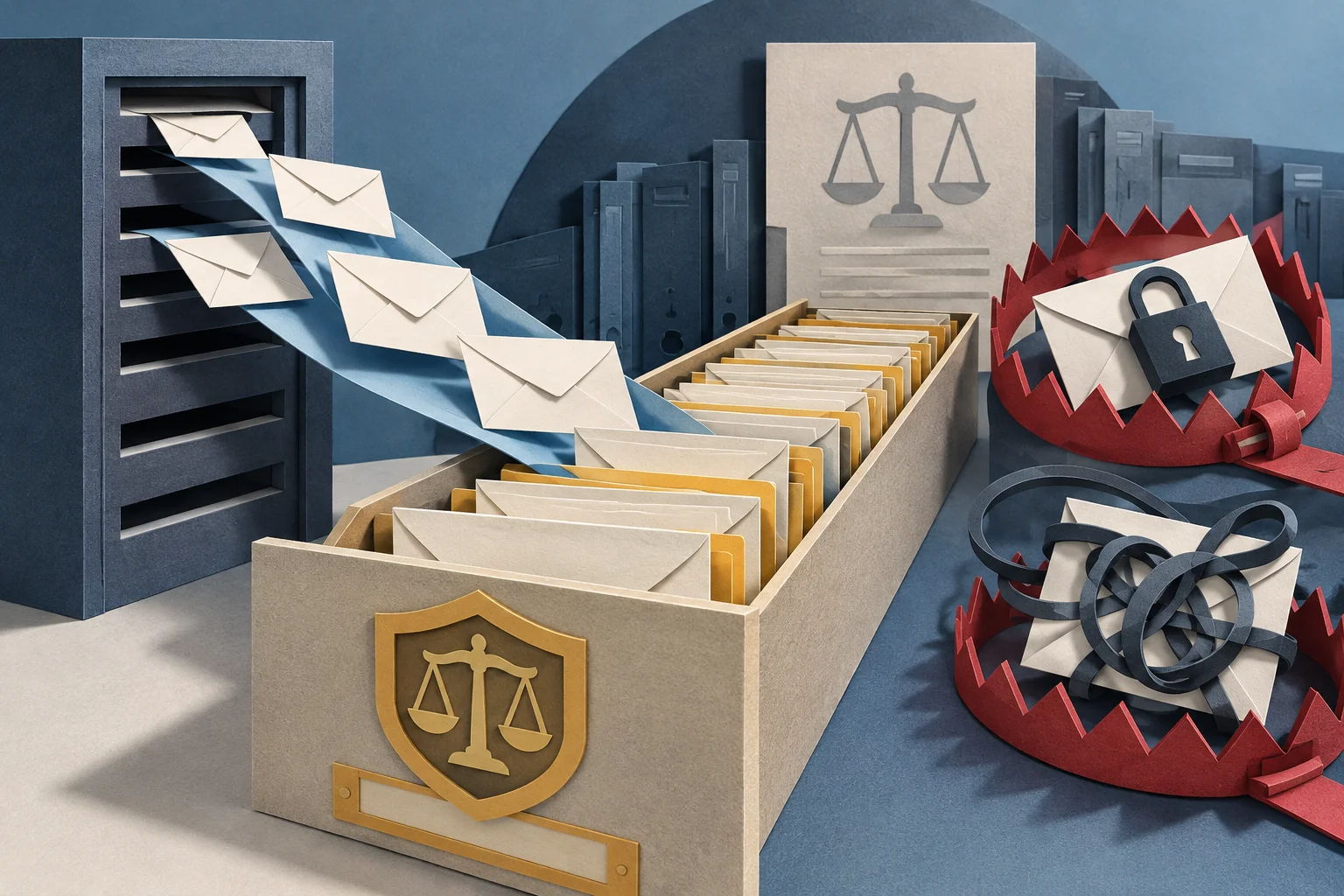
Audit and compliance often carry one requirement: “keep a copy of every message, in and out.” Domino can do this built in — mail journaling: as the router delivers a message normally, it also copies it into a dedicated database for the record. It doesn’t affect delivery — the user still gets their mail; the server just keeps an extra copy. But it’s off by default, and its encryption has two easy traps. This piece lays it out.
TL;DR
- What it is: as the router delivers, it copies the message into the Mail Journaling database (
MAILJRN.NSFby default). It doesn’t disrupt routing — by default the router keeps no copy after processing; journaling changes that only for the messages you select. - How to turn it on: off by default. Enable it on the Configuration Settings document → Router/SMTP → Advanced → Journaling tab.
- Which messages: journaling is always driven by the Journal this message mail rule (the previous piece on server mail rules) — a catch-all rule journals all mail; add conditions to journal selectively. Enabling it on the Advanced → Journaling tab without a rule journals nothing.
- Where the copy goes: a local database (the router copies to the local server, creating it if absent) or a mail-in database (which must already exist, with a Mail-in database document in the Domino Directory).
- Encryption trap 1 (local): it encrypts with the public key of the user in the “Encrypt on behalf of user” field — and encrypts the Subject by default, so the Subject column is blank in the journal’s views (the “Field encryption exclusion list” controls which fields are exempt for use in views).
- Encryption trap 2 (mail-in): mail-in journaling is not auto-encrypted — you have to enable encryption on the Mail-in database document’s Basics tab yourself, or the captured mail sits there in cleartext.
What it does
By default, the router keeps no copy of a message once it’s processed it. Mail journaling changes that: for the messages you select, the router copies each one into the Mail Journaling database as it delivers it (official: mail journaling). Crucially it doesn’t break routing — “the Router still delivers each message to its recipient after copying it,” so recipients get their mail and you just gain a record. It works with mail rules, and only an authorized administrator can examine the journal database.
To turn it on, go to the Configuration Settings document → Router/SMTP → Advanced → Journaling tab (off by default).
Which messages: all vs selective
Journaling is really two steps: (1) enable and define the journal database on the Advanced → Journaling tab; (2) create a server mail rule with the Journal this message action. Doing only the first, with no rule, journals nothing — the scope is whatever the rule says:
- All: a catch-all rule journals every message the router handles.
- Selective: add conditions (sender, subject, attachment…) to journal only matching mail — the Journal this message action from the previous piece’s mail rules.
Order matters: the journal database has to be defined on Advanced → Journaling first for the rule’s Journal action to have a destination; setting a mail rule doesn’t turn journaling on by itself.
Where the copy goes: local vs mail-in
Two storage methods (official: setting up the Mail Journaling database):
- Local database (default): the router copies each journaled message to a database on the local server (typically
MAILJRN.NSF), creating it if it doesn’t exist. - Mail-in database: journal into a mail-in database. But it must already exist, with a corresponding Mail-in database document in the Domino Directory.
Encryption trap 1: the Subject disappears (local)
Local journaling encrypts the stored messages using the certified public key of the user named in the “Encrypt on behalf of user” field — so only that user (or an authorized holder of the matching private key) can open them. Good — but with a side effect:
By default only Form, From, Principal, and PostedDate are left unencrypted — everything else, including Subject, is encrypted. And an encrypted field can’t be displayed in a view — put the two together and the Subject column is blank in the journal database’s views. Which fields are exempt — so a view can display them — is controlled by the “Field encryption exclusion list”; to see subjects in a view, add Subject to that list (but that makes subjects cleartext — a security-vs-usability trade-off).
Encryption trap 2: mail-in isn’t auto-encrypted
This one is more dangerous because it’s “assumed, but not actually there”: mail-in journaling is not auto-encrypted (official: managing the Mail Journaling database). HCL is explicit — messages added to a mail-in journaling database are not automatically encrypted by Domino; to encrypt them, you have to enable encryption on that Mail-in database document’s Basics tab yourself.
In other words, if you journal via mail-in and don’t manually enable encryption, your whole compliance archive sits there in cleartext — the audit wanted a record, but you’ve kept one anyone can read, which is itself a risk. If you use mail-in, enable this.
Other things to know
- Already-encrypted mail isn’t re-encrypted: if a message was already encrypted by Notes for its recipients when sent, journaling doesn’t re-encrypt it with the journal user’s key. So if the journal user wasn’t a recipient, they can see only the header information, not the body.
- Hidden by default: Domino hides the Mail Journaling database from users in the Open Database dialog by default, so it isn’t casually opened.
- Dedicated ID recommended: HCL recommends creating a dedicated journal ID with multiple passwords, to tighten control over who can open the archive.
Wrap-up
- What it is: the router copies a message into the journal database as it delivers, without disrupting delivery; off by default, enabled on Router/SMTP → Advanced → Journaling.
- Scope: all, or selective via the Journal this message mail rule (journaling must be on first).
- Where: a local database (
MAILJRN.NSF, auto-created) vs a mail-in database (must already exist, with a Mail-in document in the Directory). - Trap 1 (local): encrypts with the “Encrypt on behalf of user” key; the Subject is encrypted by default, so it’s blank in views — adjust via the Field encryption exclusion list.
- Trap 2 (mail-in): not auto-encrypted — enable it on the Mail-in database document’s Basics tab, or it’s a cleartext archive.
- Other: already-encrypted mail isn’t re-encrypted (a non-recipient journal user sees only headers); hidden from Open Database by default; use a dedicated journal ID.
Sources
- Mail journaling (capturing copies for compliance, doesn't disrupt routing, works with mail rules, all or selective, stored in MAILJRN.NSF, Router encrypts) — HCL Domino (official)
- Setting up the Mail Journaling database (enabled on Router/SMTP → Advanced → Journaling, local vs mail-in, Encrypt on behalf of user, Field encryption exclusion list, Subject encrypted) — HCL Domino (official)
- Managing the Mail Journaling database (mail-in not auto-encrypted, already-encrypted mail not re-encrypted, hidden by default, dedicated journal ID recommended) — HCL Domino (official)